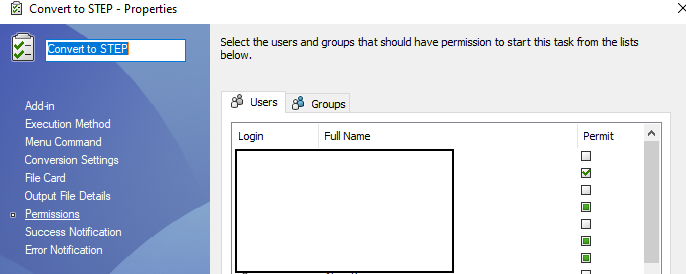
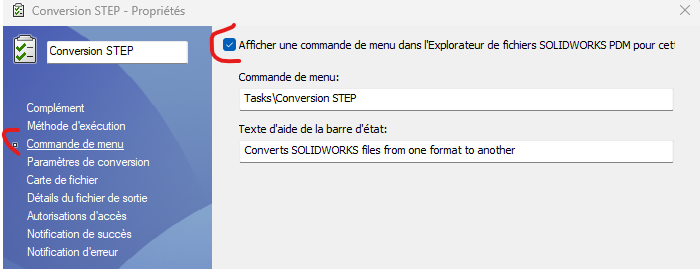
I have a PDM task to convert a 3D (sldprt or sldasm) to a step. The task can be launched at will, by right-clicking in PDM.
I would like to find a way so that this task can only be started for files whose STATE = APPROVED variable, this is to prevent rascals from coming out of the steps of parts under development...
In the task settings, I didn't find a conditional function, only access rights to groups/people, but there are rascals everywhere.
I imagined being able to make a dispatch script, but I can't find a condition to activate a script when launching a task.
Hello, Apart from a transition that would launch the task (removal of the option in the users' context menus) I don't see any other native solution. Afterwards, maybe by playing on the script itself (it's nothing more or less than a macro that launches), by intercepting the workflow state or by querying a variable and forbidding the launch of the task.
It would seem simple put like that! Normally in the workflow there is no way to apply a task easily The AI gives me this information to take with a grain of salt and I don't have PDM, unfortunately.
Filter Action for Parts and Assemblies
Open your workflow and double-click on the transition that leads to Approved.
Go to the Actions tab and double-click on your existing action (or create a new one of type Run Task).
In the Run for extensions box, enter the comma-separated extensions: sldprt, sldasm.
Configure the STEP conversion job (If not created)
If you haven't already set up the task itself in PDM:
In the Admin Tree, right-click on Tasks > New Task (or double-click on the Convert task if you're already using it).
In the Add-in section, select SolidWorks Task Add-in.
In the Output Properties section:
Select STEP (*.step) or IGES/STEP in the output file format.
Define the destination folder (e.g. original folder or dedicated export folder).
Enable Task Servers
Make sure that your compute computers have the Task Add-in Configuration option enabled (via the PDM icon in the Windows taskbar, right-click > Task Server Configuration).
Select the checkbox for your conversion job to have this PC accept processing it.
Again this is a strict copy of what AI gives me, I've already had some pretty gross errors so to check
As @Cyril_f said, you have to start the task during the approval transition (-> the steps will be done automatically with each approval). On the other hand, it will make you a lot of steps. If that's too much, you'll have to create a specific approval path with step creation in your workflow (not the easiest to manage) or manage the launch of the task according to the value of a property (probably a better solution).
And the job must not be accessible to standard users but only to the workstation/user/group that manages your print jobs (in the task settings):
If it's easy but you have to create a transition that executes the task, an arrival step of this transition where nothing happens and then return to the automatic start step via a transition. Edit: Or do it in the transition that leads to the Approved state as suggested by @froussel but effectively systematic steps and not on demand