Sorry for my stupid question but in solidworks I have an assembly of a hundred parts I hide some parts for my design needs Is there a button to make all the hidden pieces appear at once?
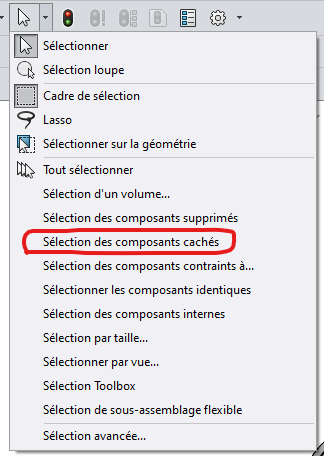
If it can help you normally by selecting them, it works (except for me )
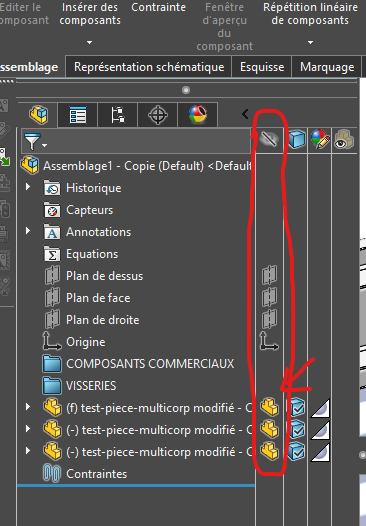
If not, in the tree you have a column dedicated to this hidden action. By selecting all your parts by pressing Ctrl and with your mouse you select one of the parts logos, and all your parts are hidden
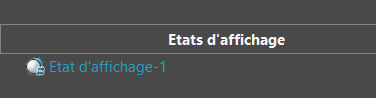
In addition to @FRED78's answer If the need is recurrent, managing several display states would not be silly (one state with everything visible and others with some parts / sub-assemblies).
Otherwise, working with sub-assemblies (possibly virtual if you don't want to manage them) can greatly facilitate the designs (it already allows you not to have 8000 constraints in the main assembly so limits the risk of red constraints on the 8000th).
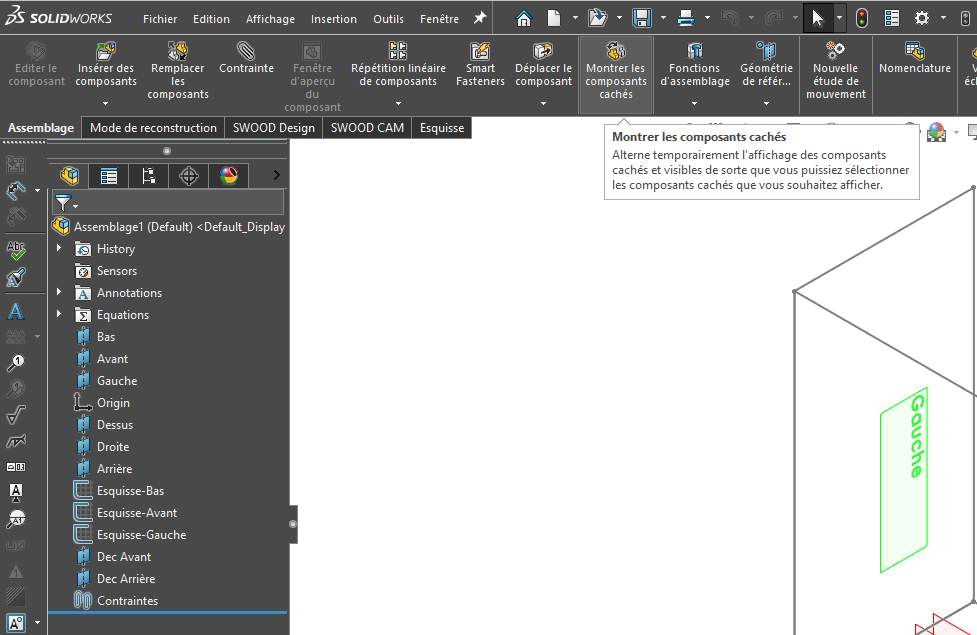
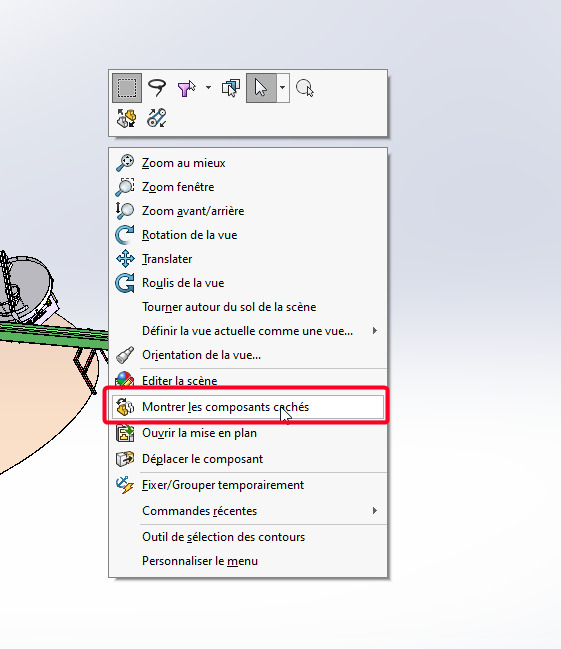
To view hidden components in SolidWorks, you can use the " Show Hidden Components" option on the context menu or the Assembly toolbar. Then you just have to select all of them to make them disappear from this view and appear in the normal graphic view.
Methods to View Hidden Components
Use the right click :
Right-click an empty area in the graphics area.
Select " Show Hidden Components ". This will display all the hidden components in the assembly.
Use the Assembly toolbar :
Click the " Show Hidden Components" icon on the Assembly toolbar. This will open a dialog box where you can select the components you want to view.
View with dependents :
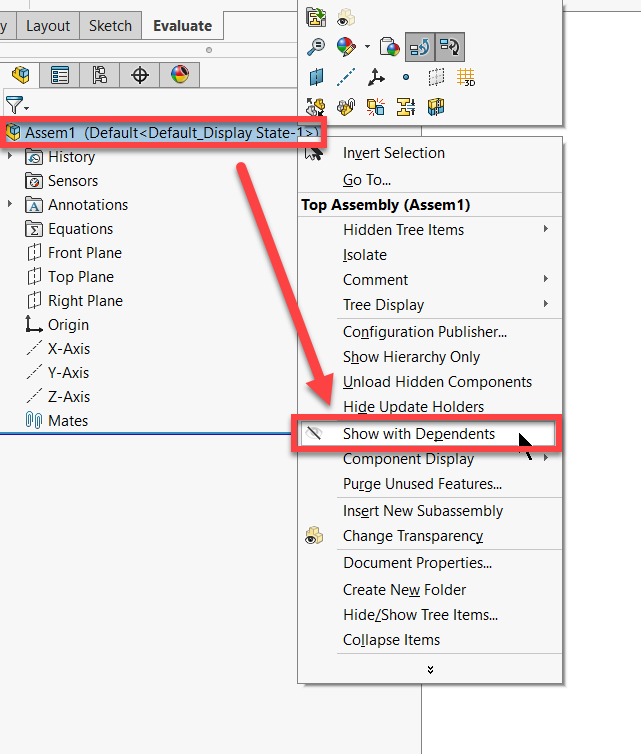
Another method is to use the " View with Dependents " feature, which can quickly display all hidden components, whether they are top-level or buried multiple levels deep.
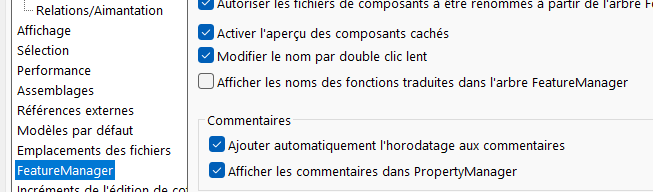
Hi @FRED78 , In the options check " Enable hidden component preview"? Then you select the hidden room in the featuremanager and it will appear transparently
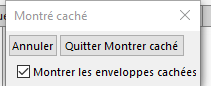
And again right-click on the SW wallpaper, then Show hidden components: After a few seconds select all the hidden elements you want to show (selecting everything if necessary) and then exit the hidden show:
 )
)