Hello, I have a little puzzle to offer you, and its resolution would help me a lot for my future projects.
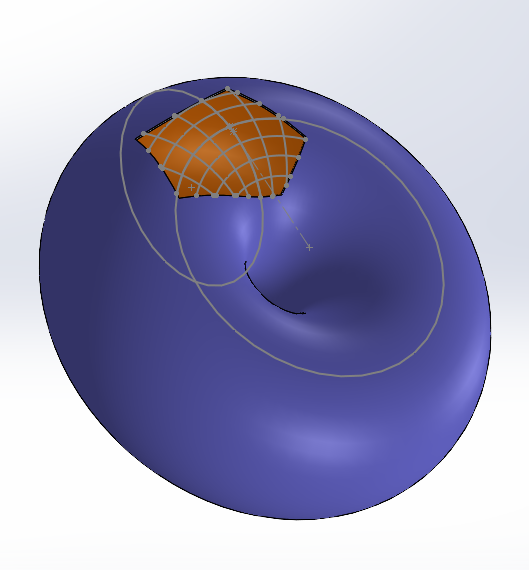
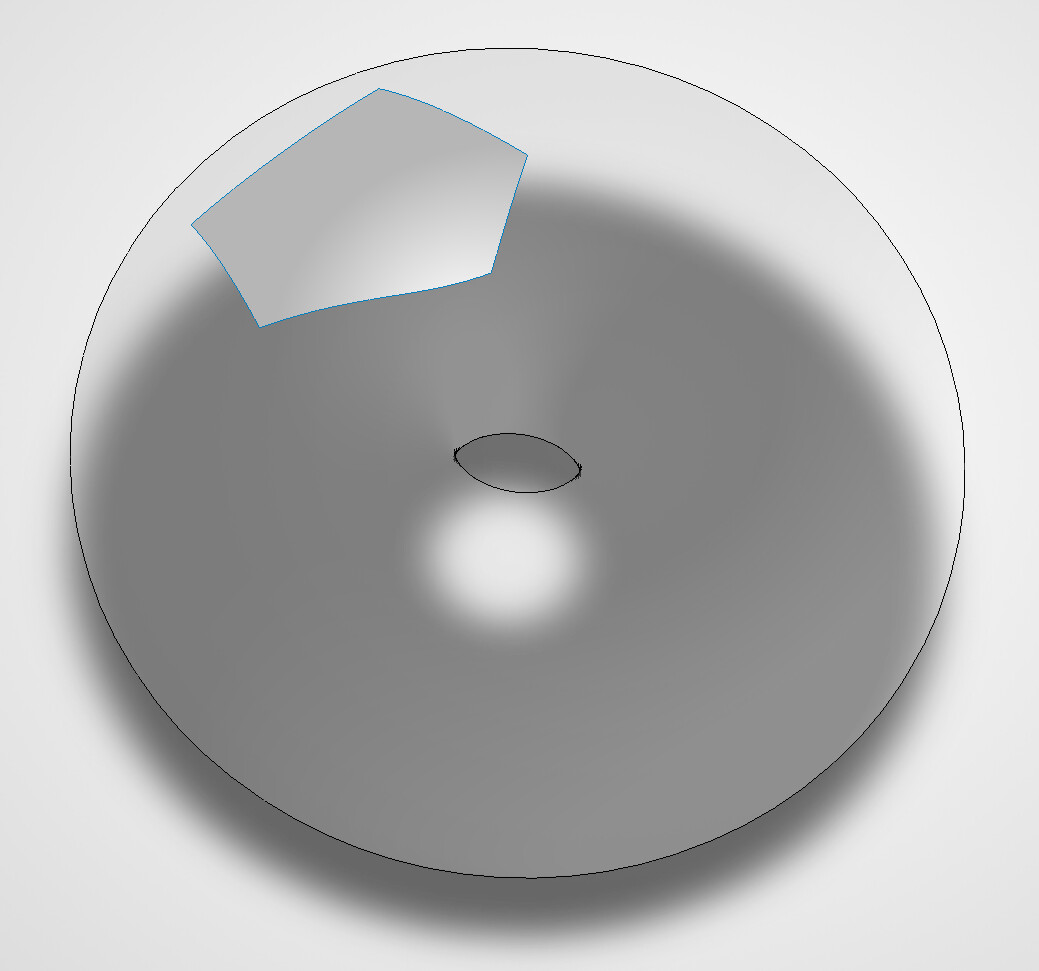
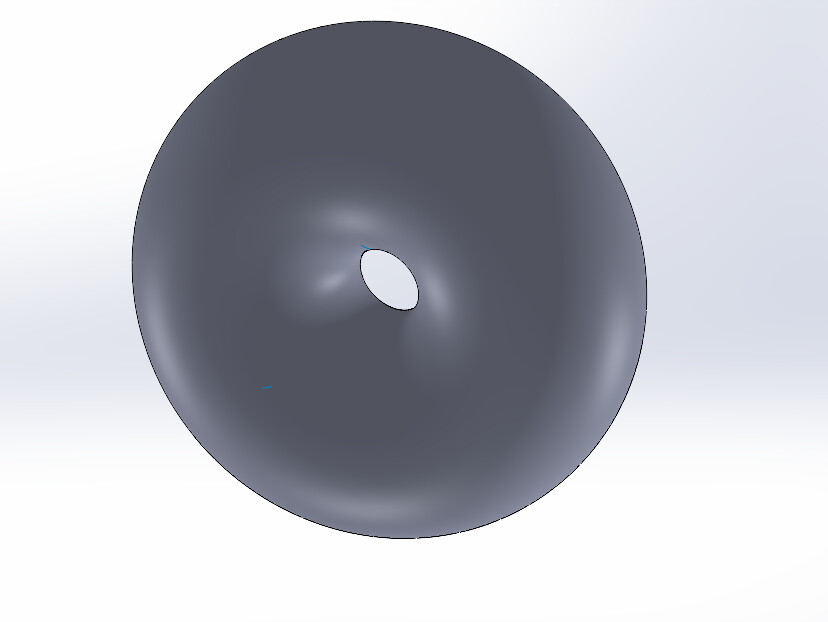
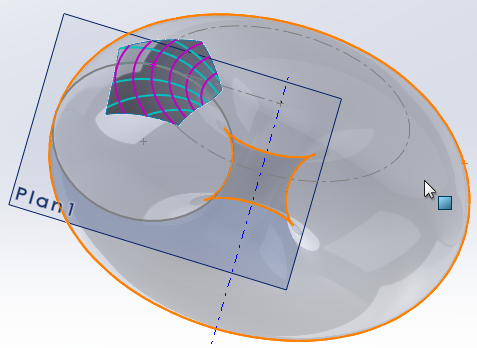
Question: What would be your approach if you had to recreate/recover this torus with only a portion of its surface as a reference? (It is assumed that the volume is not aligned with the original plans)
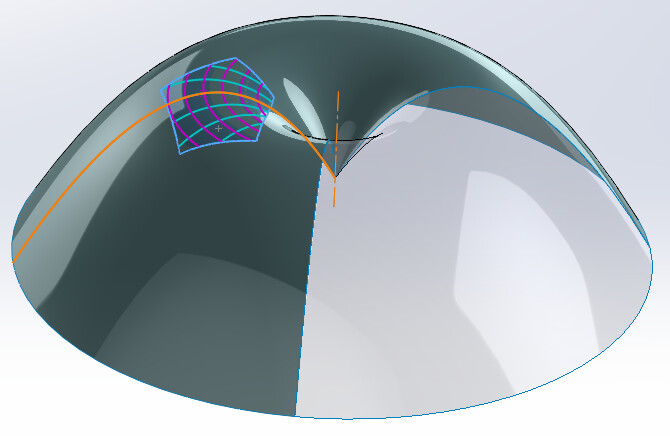
Well congratulations and thank you! I had the same intuition as you about the interweaving of surfaces, so I had never tried to push the function to the point of recovering the entire geometry, but it seems that the function is more robust than I thought.
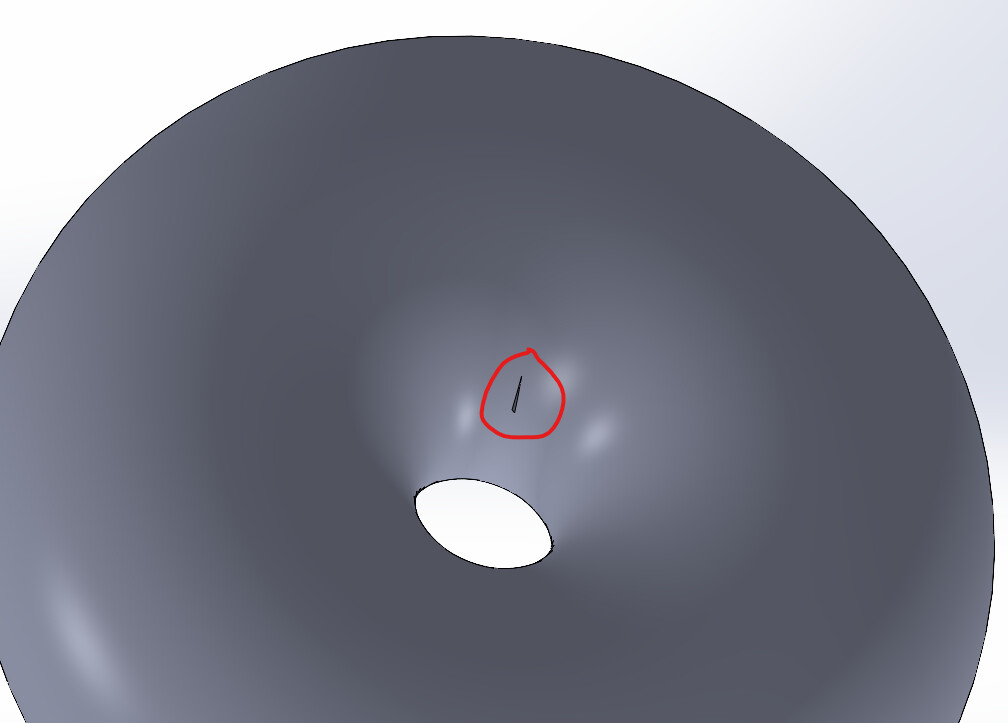
I have another question that arises from this: The function gives us back the complete geometry of the volume but in the form of a surface. The " sew" function with the " create volume " option apparently does not work on a single surface. Are we therefore obliged, in order to recover the volume of our torus, to go through an encompassing volume and then to cut it thanks to the surface thus created?
Even if you fill in the hole, the " Stitched Surface" function shows you this message:
NB: I just found the solution by writing this message, you have to use the " Thicken " function with the option " Create a solid from the closed volume"
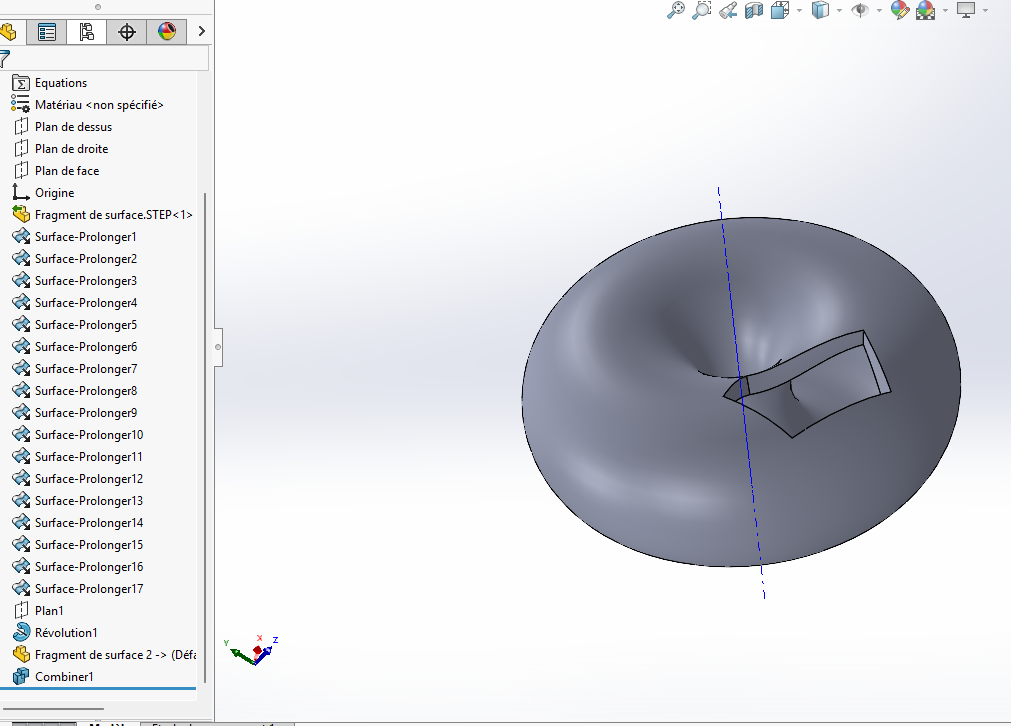
I got there, well after I don't know what you want to do with it. With the fragment I created a thickness. From the reconstructed form, I created a profile and created a revolution. I inserted the fragment into my main shape which I then subtracted (the bodies)
I propose a geometric construction that can be used even if the surface fragment is not strictly a portion of a torus (imported surface for example). The goal is to build a torus approaching the fragment, finding the section and the axis...
Step 1 Select [Tools] > [Sketch Tools] > [Face Curves]. Select the surface fragment, and set the desired number of curves. The curves obtained are splines within 3D sketches... Some are parallel to each other (in pink), others are convergent and constitute the sections of the future torus (in turquoise).
Step 2 Open the 3D sketch of one of the " Parallel" sketches (the longest...). Insert a sketch point (point P) at the intersection with one of the " Sections " sketches (the longest...). To get out of the sketch.
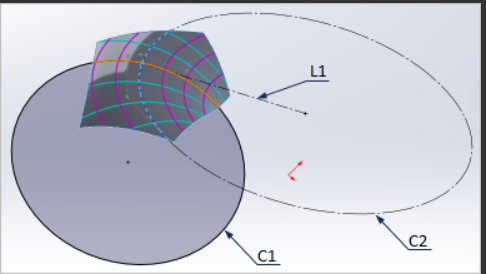
Step 3 Open a new 3D sketch (Sketch3D0) and trace:
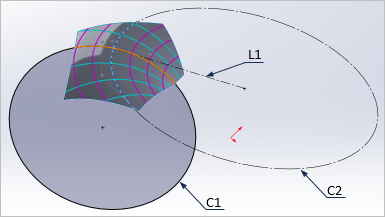
a first circle C1 passing through points A, P and B,
a second circle C2 passing through the points M, P and N
a construction line L1 joining the point P to the center of the circle C2. Moving beyond the sketch
Step 4 Create a plane through points A, P, and B (Plan1). Open a 2D sketch in this plane, intended for the generation of the torus, and draw:
a coradial circle to circle C1. This is the section of the torus;
a construction line perpendicular to the L1 line of the 3D sketch, and passing through the center of C2. This is the axis of the torus.
Step 5 It remains to generate the torus per revolution...
Well seen , I thought the same, but I didn't know what function I went through. My solution is a gimmick next to yours, but both deserve to work in this case.
@FRED78 , thank you for the compliment... Two remarks: You can reduce the construction tree a little by placing the " Face Curves" in a single 3D sketch, provided that you edit it before applying the function. The main interest of the method is to achieve a native geometry of Solidworks based on a sketch to generate the final volume.
It must be possible to extend the principle to the approximation of other surfaces. Same initial fragment, but with a parabola arc instead of a circle to approximate the section: the torus takes this shape...
It all depends on the estimate we make of the geometric nature of the fragment and its curves from the front. This is where extending the surface of the fragment can come in handy.
@m_blt Don't worry, I have some in stock given my professional environment
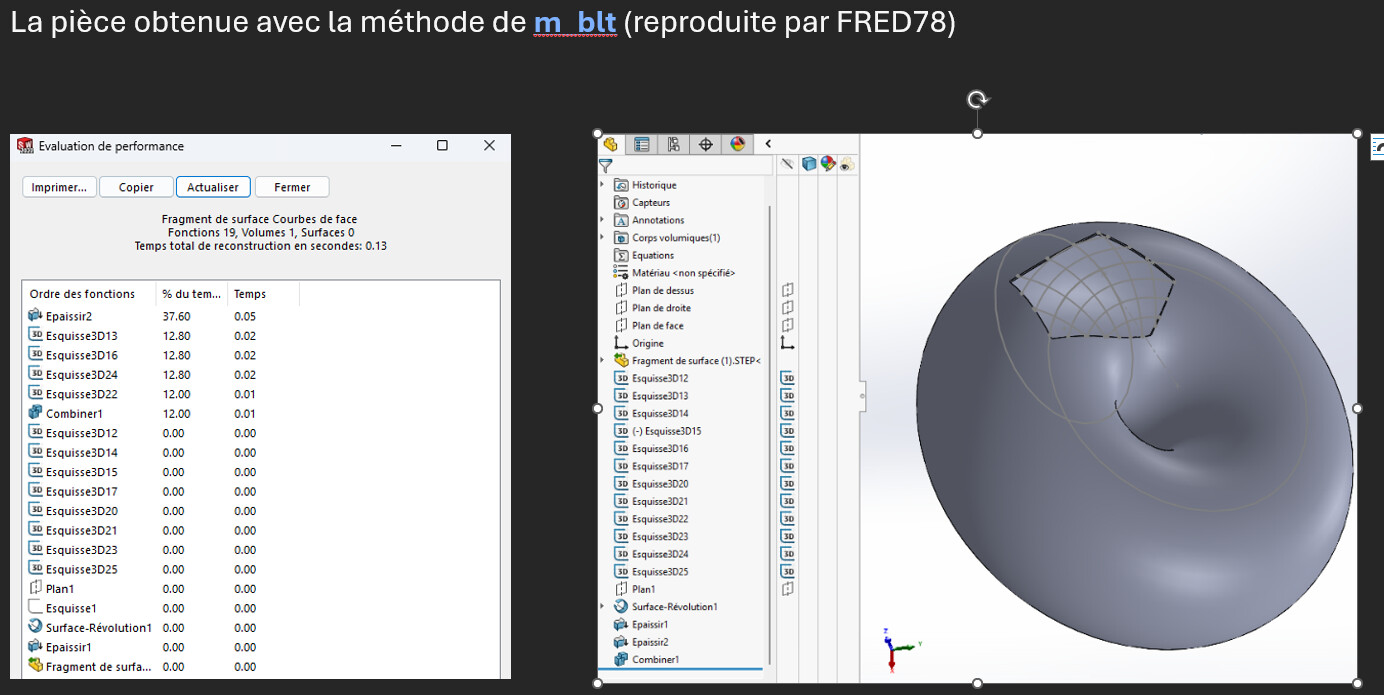
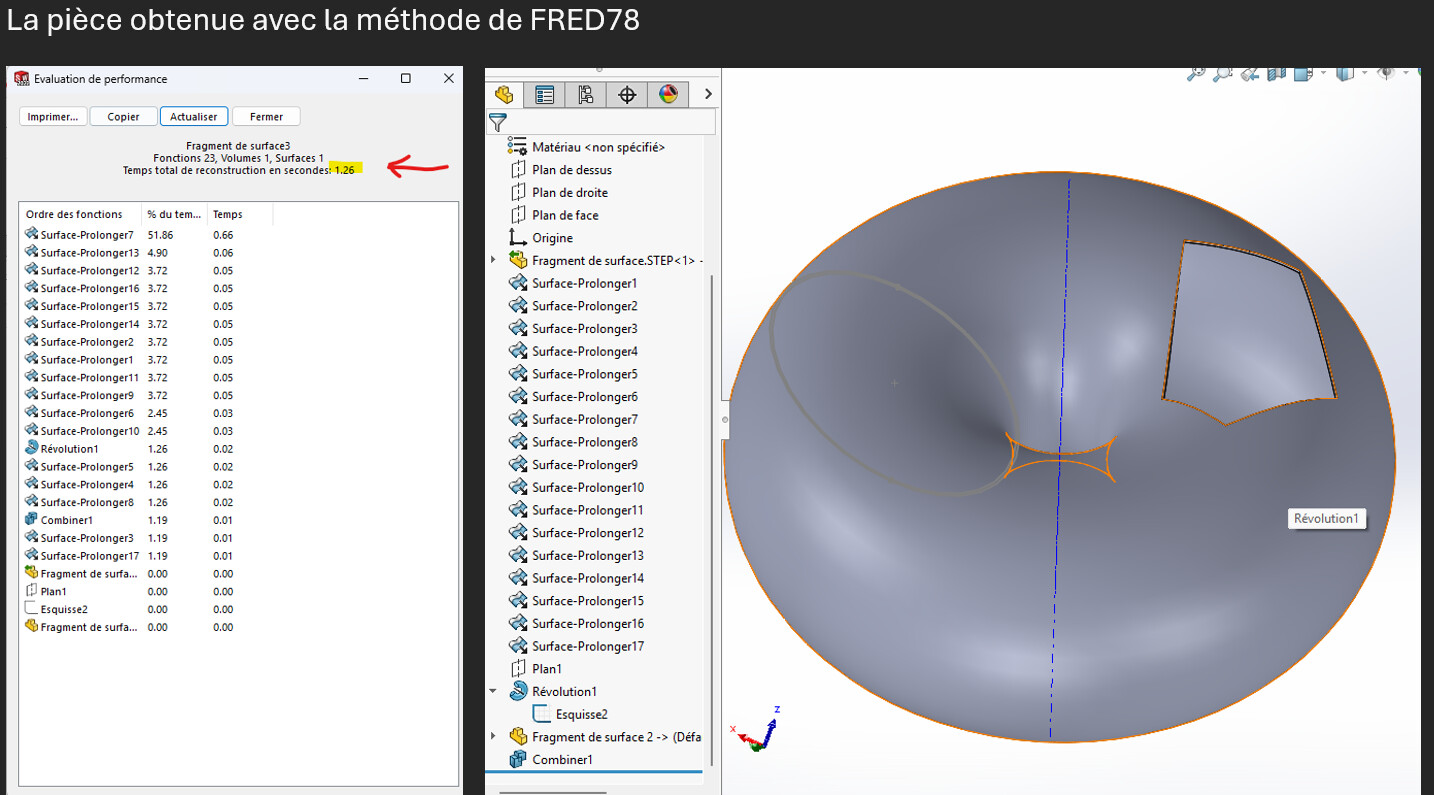
I also thought it was possible to take shortcuts, but I wanted to follow your method to the end. But be careful, simplifying a tree is good. But you have to check the weight of a part, and the reconstruction time. Because some functions are resource-intensive. Send me this new piece out of curiosity
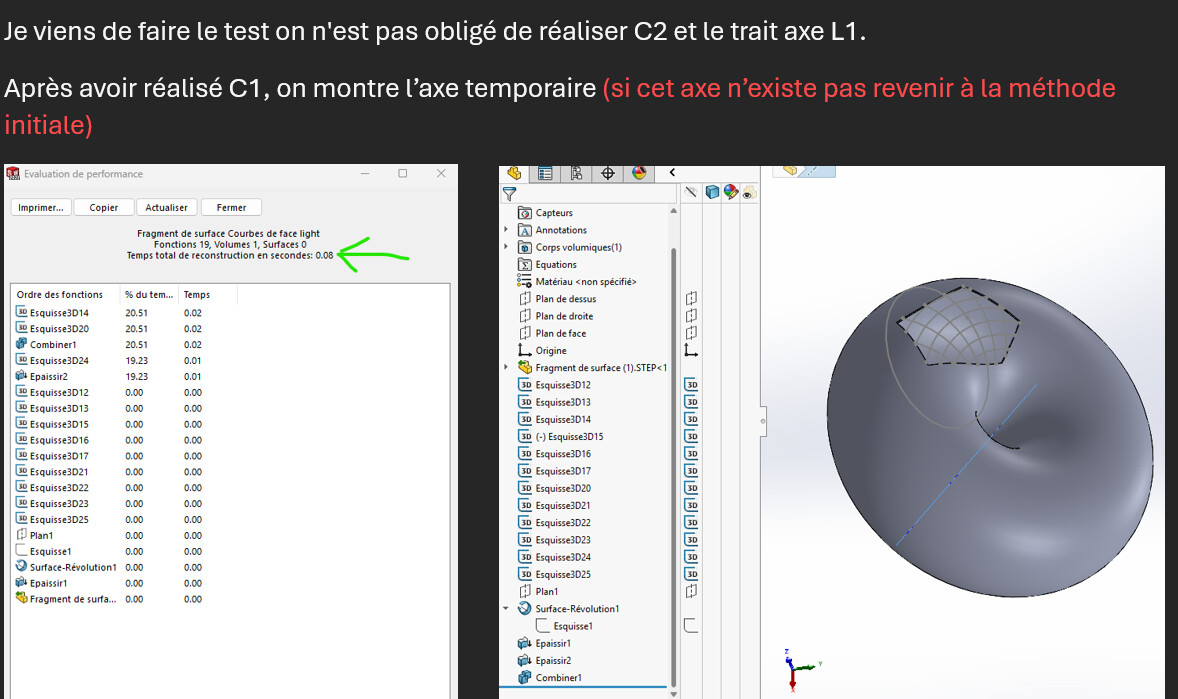
A short comparison between the methods proposed The method I propose with the extension of surfaces is not so efficient. Your @m_blt method is out of all proportion to mine. By optimizing the @m_blt method we can further improve the performance of the part: By removing the circle C2 from the L1 stroke, using the temporary axis of the original part.
In fact, if we know the geometric nature of the surface, it is possible to analytically find the basic shape by using, as the case may be, 4, 5 or 6 particular points of the surface fragment.
The more general problem is to have a fragment without knowing the nature of the base surface: torus, cylinder, paraboloid, ellipsoid... In this case, it is the front curves that can provide information, in addition to the user's intuition. This is only possible if the fragment is large enough to hold enough information.
It then remains to evaluate the face curves of the fragment. In addition to their shapes, drawing several of them can help:
several coaxial arcs ==> form of revolution, and its axis;
several parallel line segments ==> cylinder;
convergence of curves at a point ==> vertex on the surface;
…
Finally, it is necessary to draw a curve of the section as close as possible to the selected face curve, with a criterion of quality, mathematical or human: the eye.
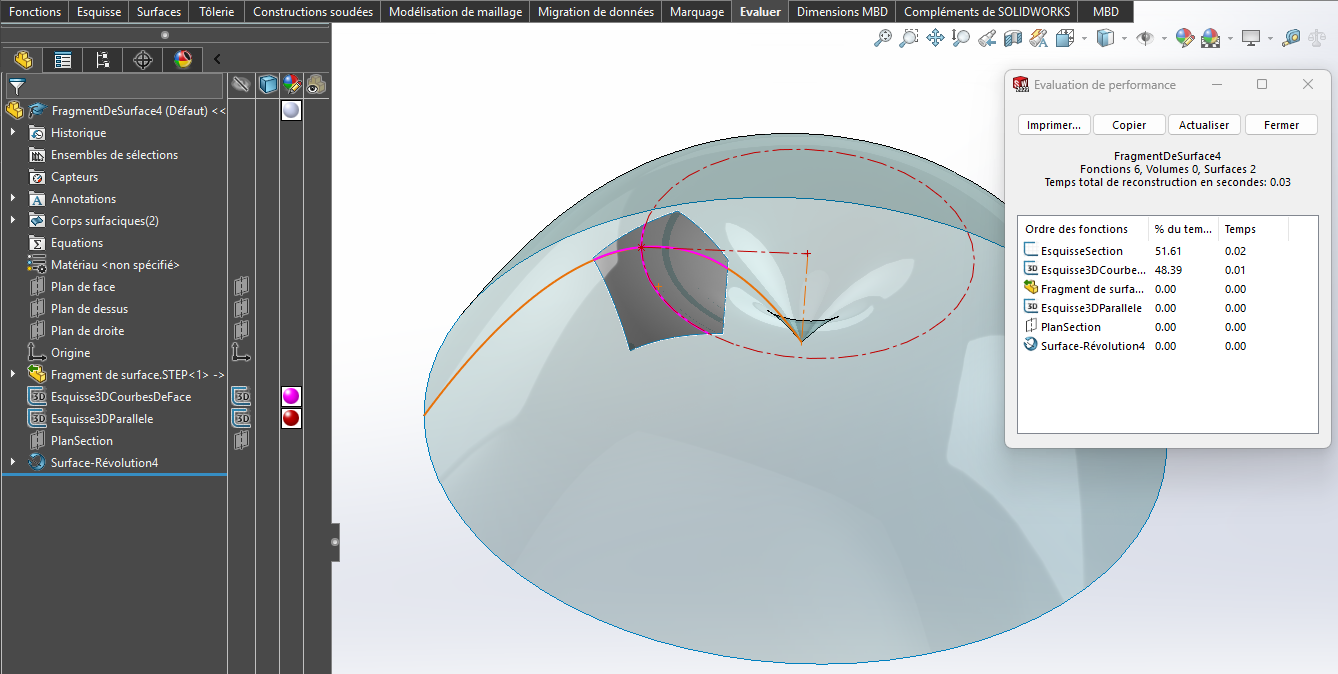
Below is the example based on the fragment proposed by @Léo_SABATIER , assuming that the face curves are parabolas and not circles...
SW 2022: FragmentDeSurface4.SLDPRT (146.8 KB) Compact construction tree, with a sketch of the face curves with only one curve for each direction (the " Position " checkbox of the feature). Which can be further reduced by grouping the sketches Sketch3DCourbesDeFace and Sketch3DParallele into one.


 , I thought the same, but I didn't know what function I went through.
 , great this method